User Guide
Step by step with screenshots — from install to valuation.
What is Anahtar?
Lunify Anahtar is a WhatsApp assistant for real-estate agents: describe your listings and buyer requests in plain words, and it records, matches, reminds and drafts messages for you.
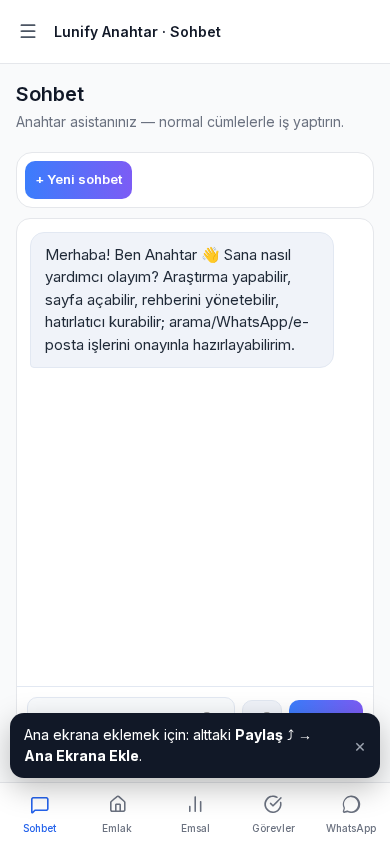
1. Install it on your phone
Open anahtar.lunify.world in your phone browser. iPhone: Share → Add to Home Screen. Android: tap Install in the bar at the bottom.
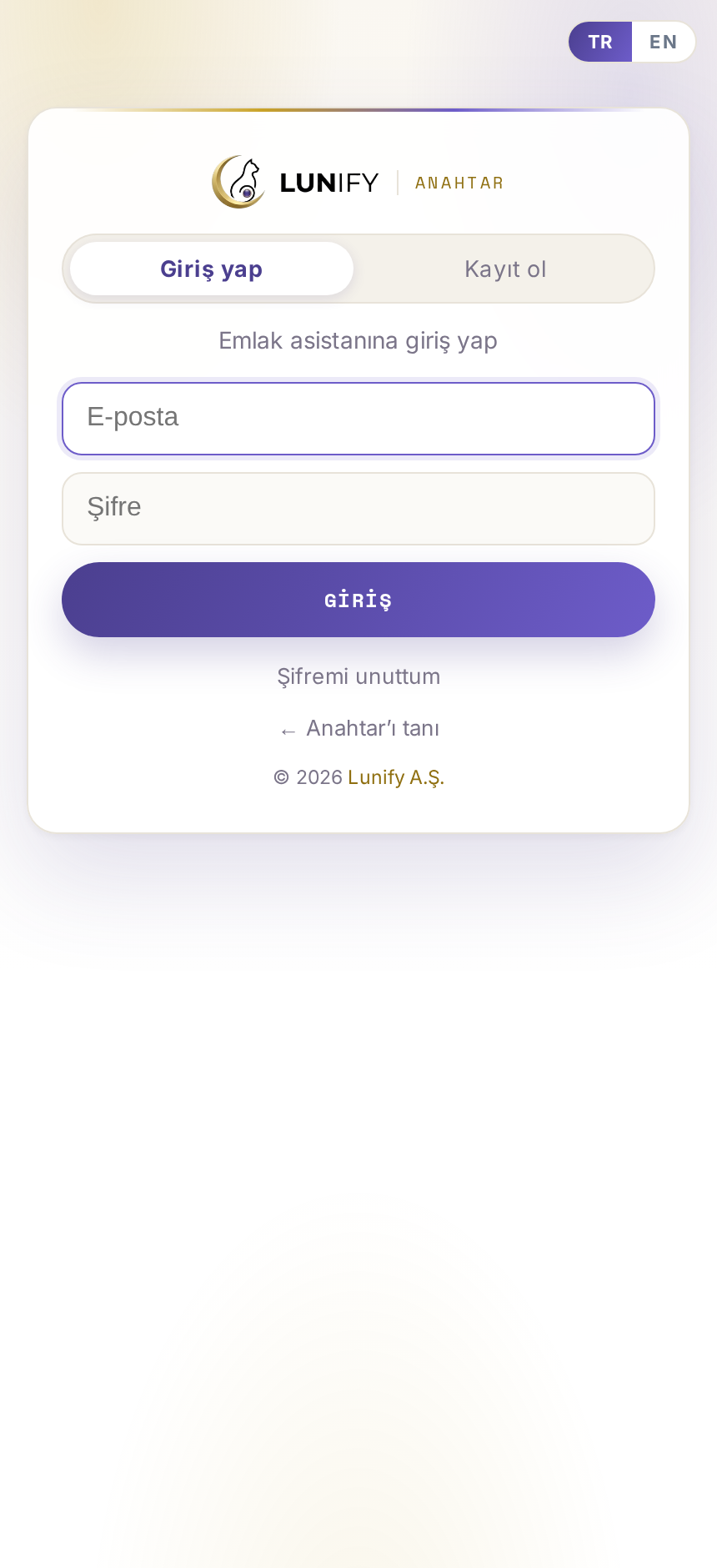
2. Sign in
Sign in with e-mail and password, or create an account from the Sign up tab. First 3 months are free, no card required.
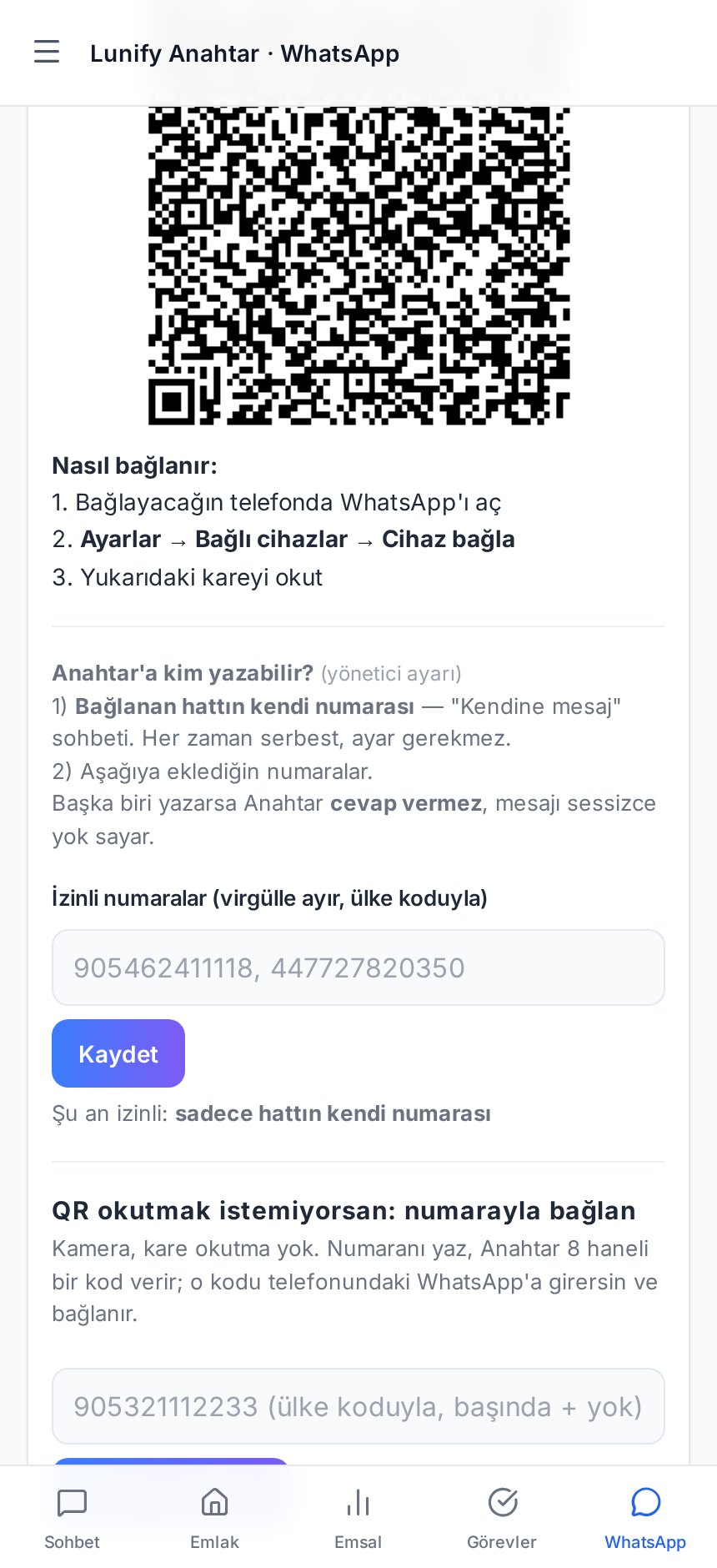
3. Connect WhatsApp
Scan the QR code from another device (WhatsApp → Settings → Linked devices), or request an 8-digit pairing code with your number. Only the line owner can command Anahtar.
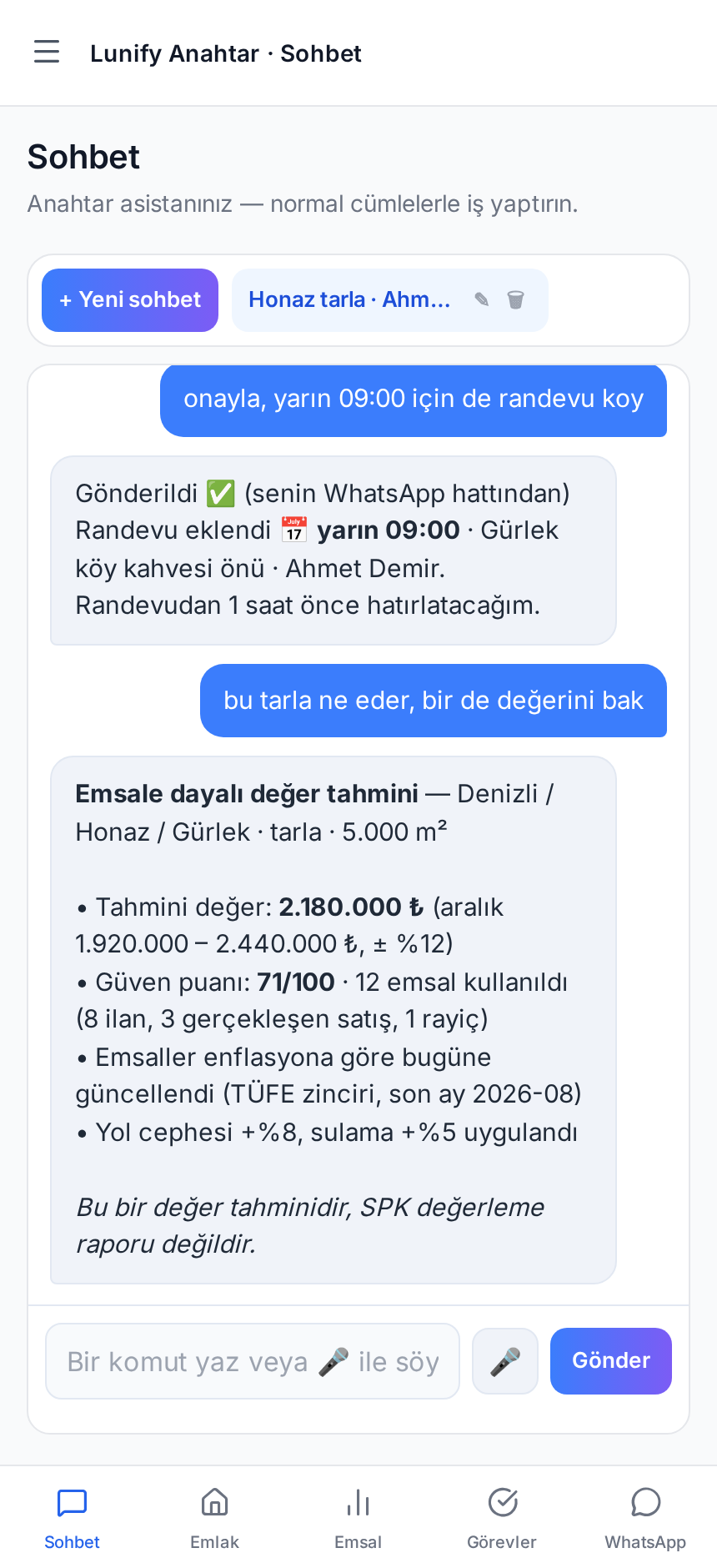
4. How to talk to it
No commands to learn — type or dictate: “5 dönüm field in Honaz, 1.9m, owner Mehmet”, “who should I call today?”, “what is this land worth?”.
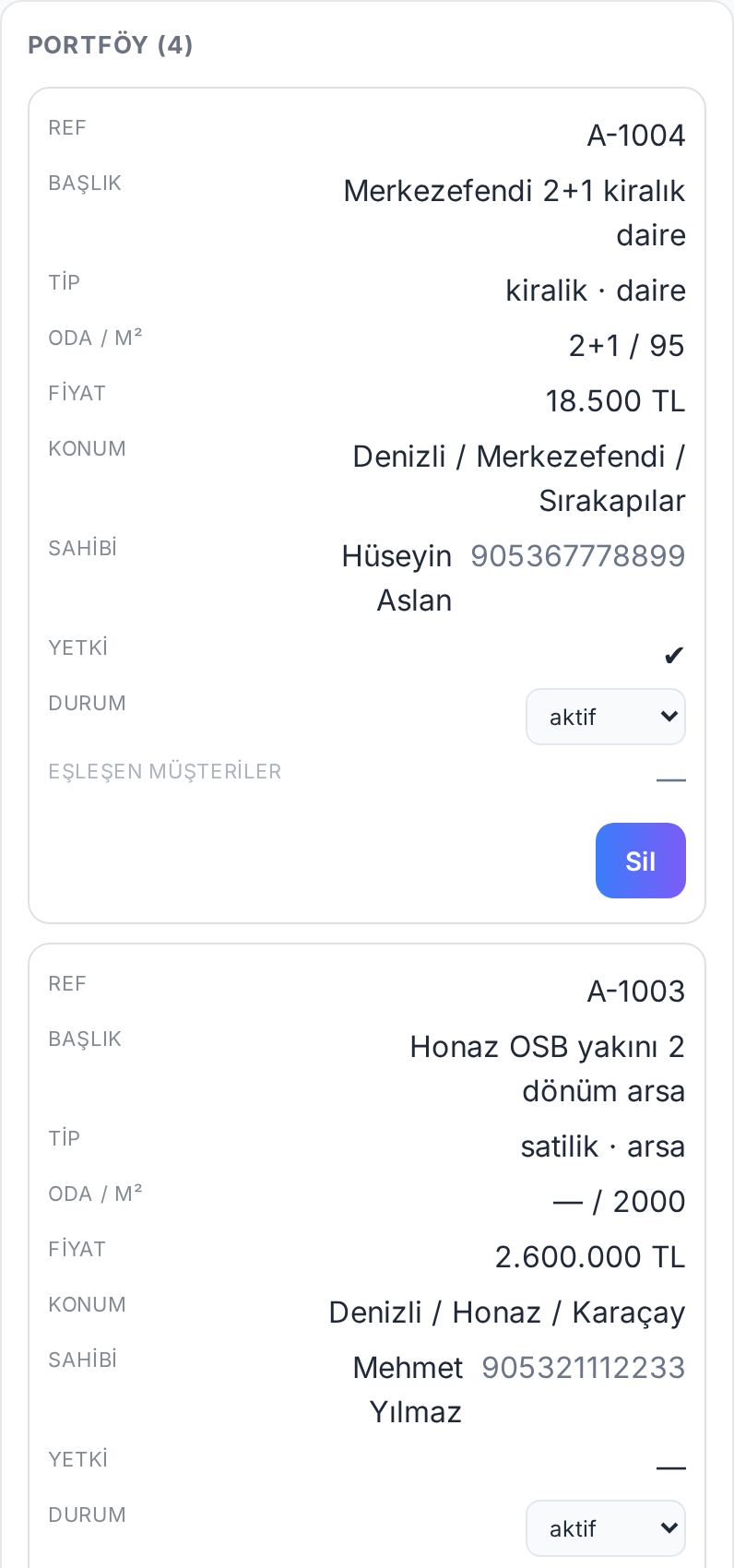
5. Listings
One sentence creates a listing with a reference code. Say “A-1001 is sold” to update its status.
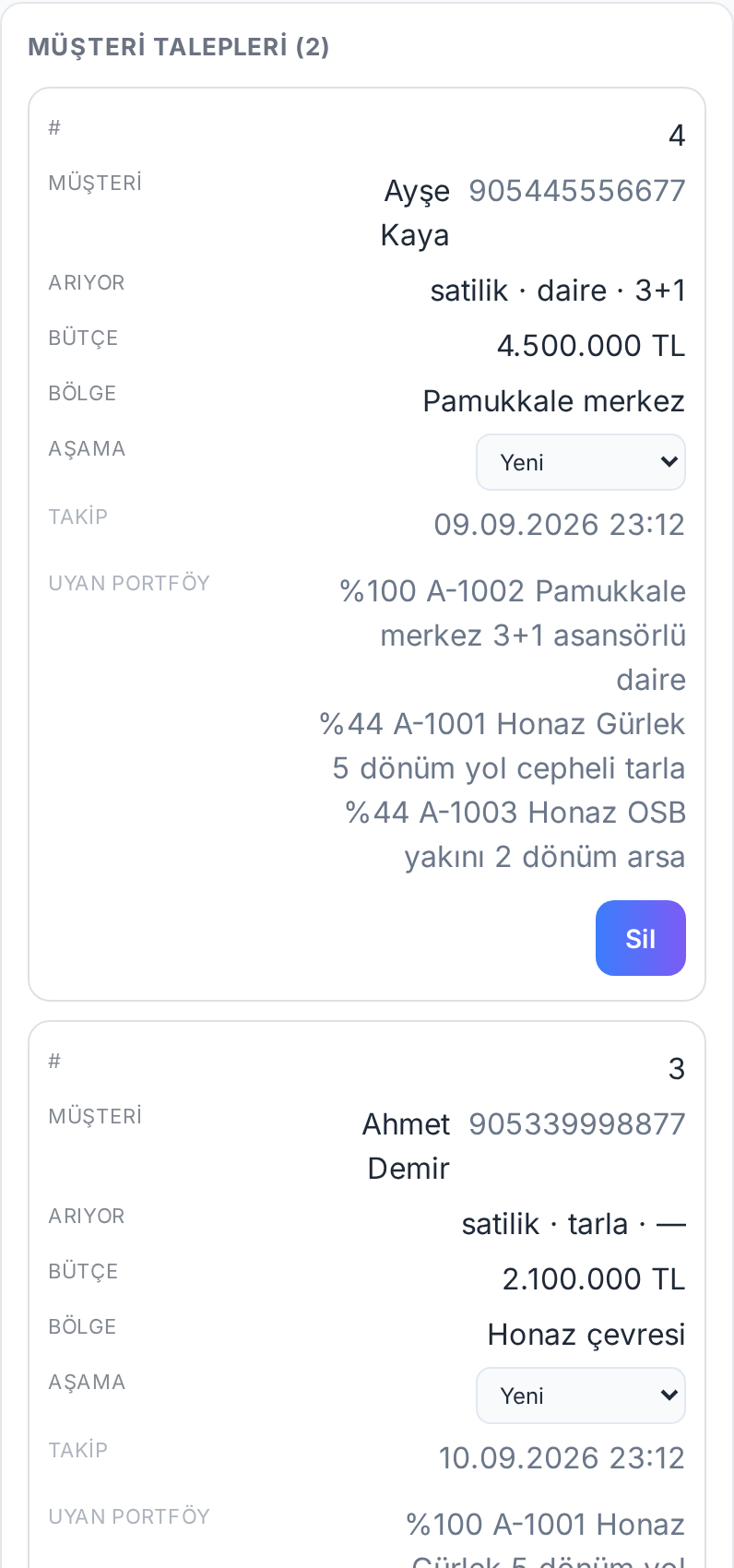
6. Buyer requests and matching
Record what each buyer wants; Anahtar matches them against your listings with a percentage and tells you when a new listing fits an old buyer.
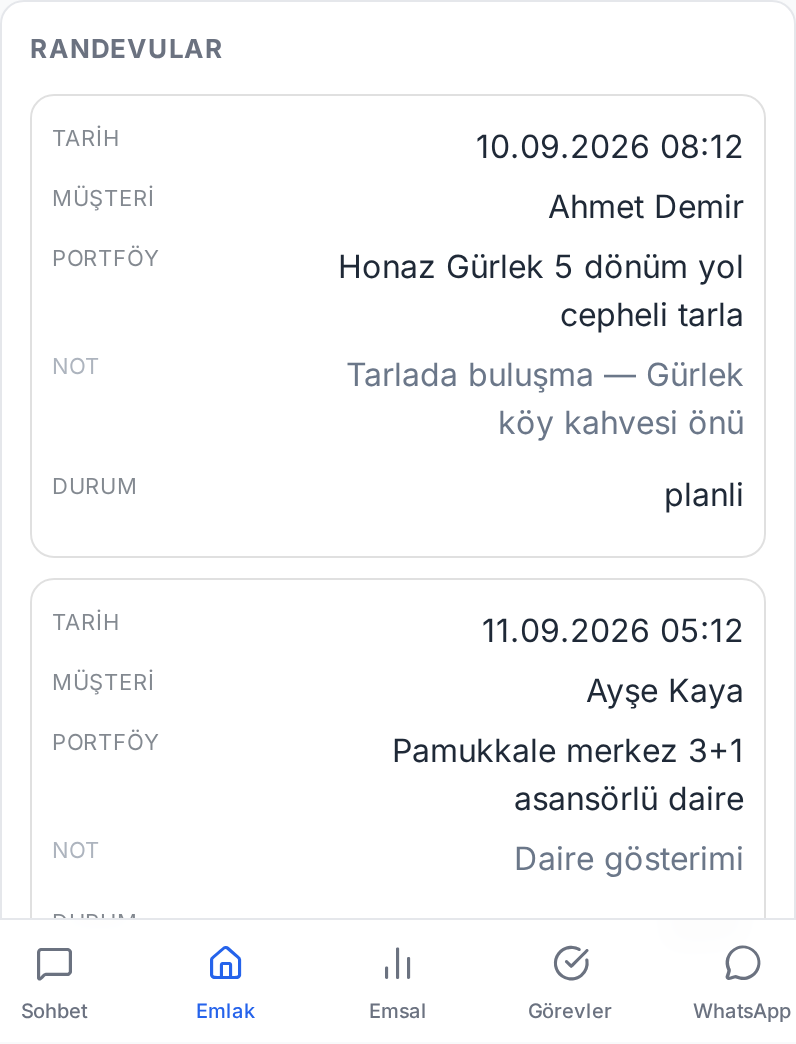
7. Appointments and follow-ups
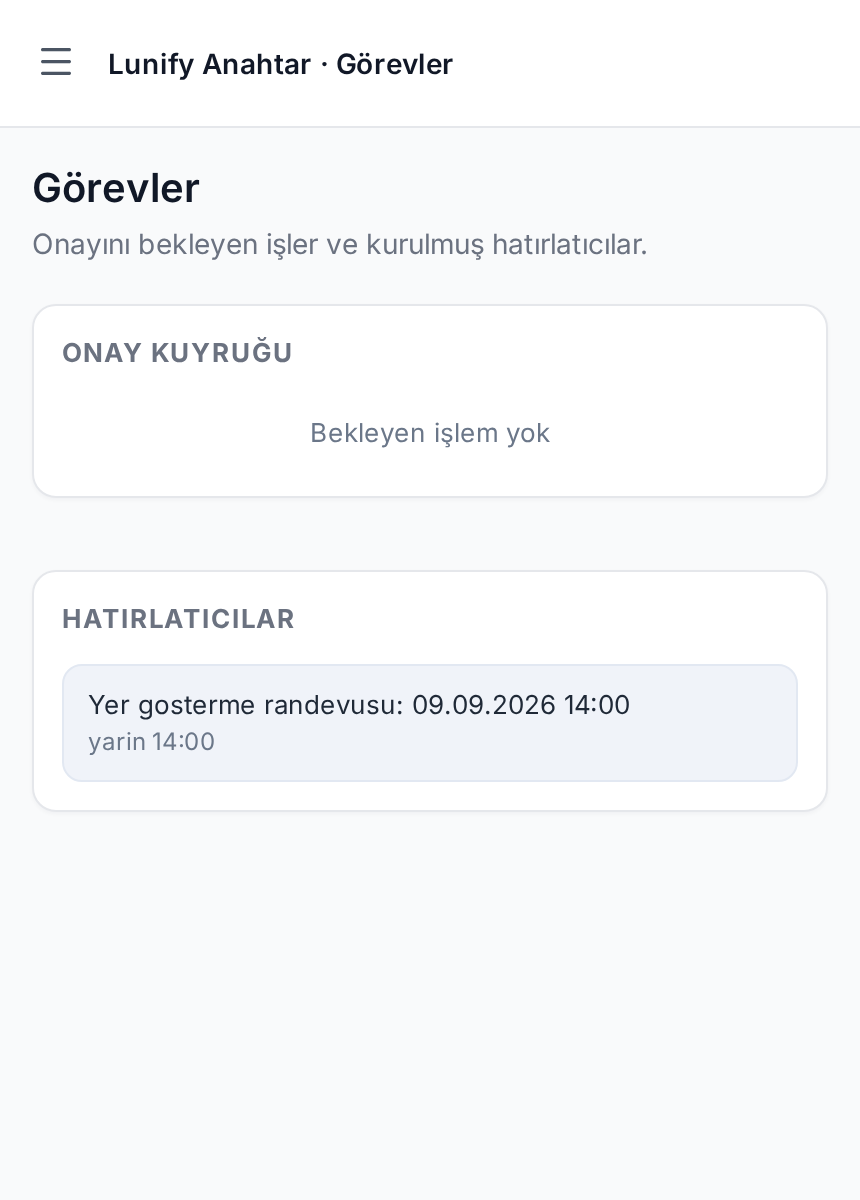
It stores viewings, reminds you beforehand and asks how it went afterwards.
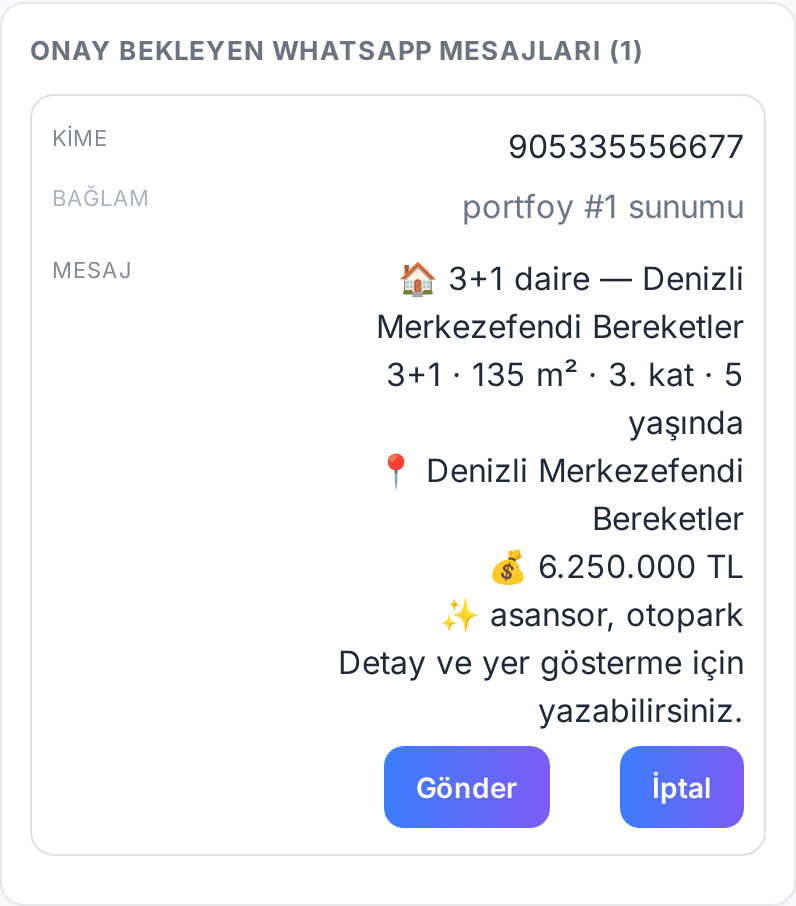
8. Messaging clients
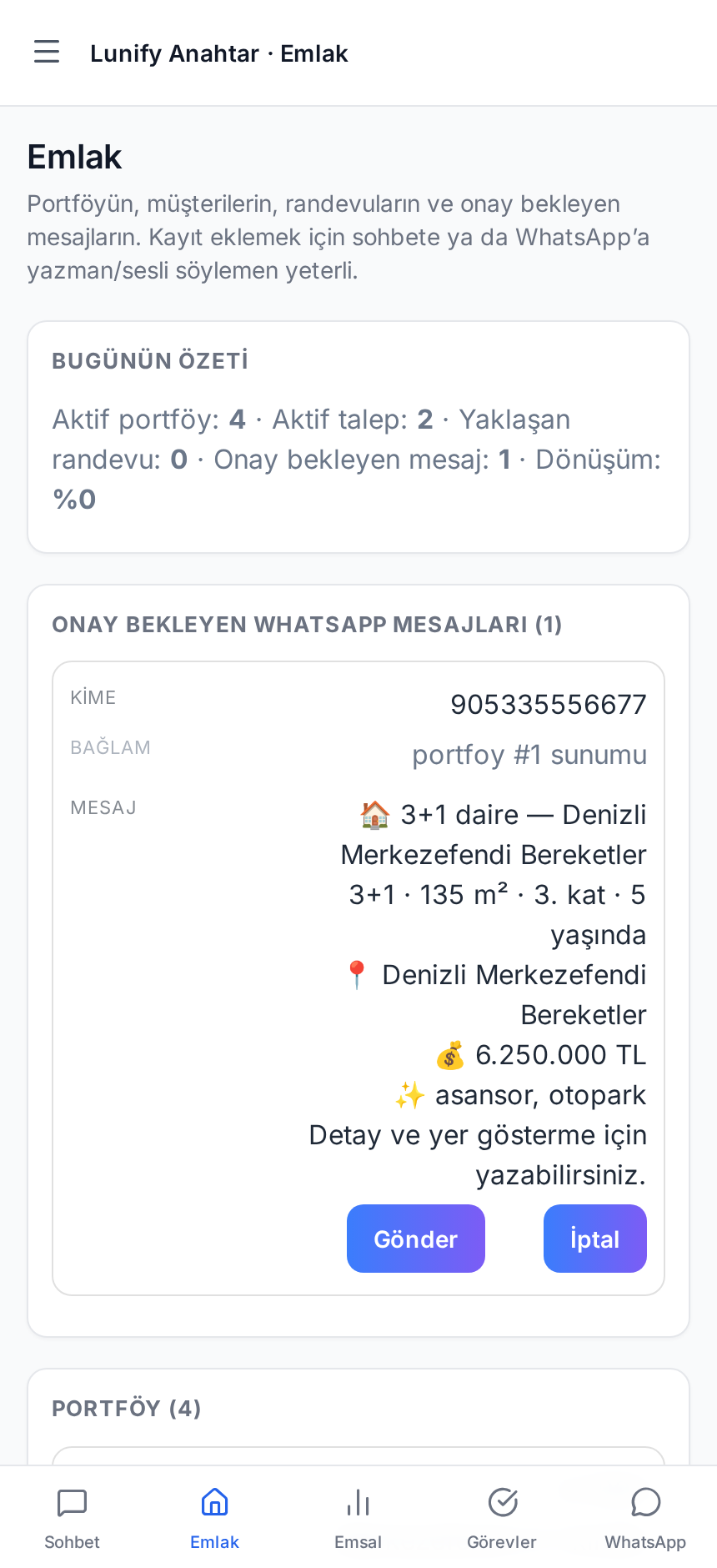
Every outgoing message waits for your approval and is sent from your own number.
9. Land valuation
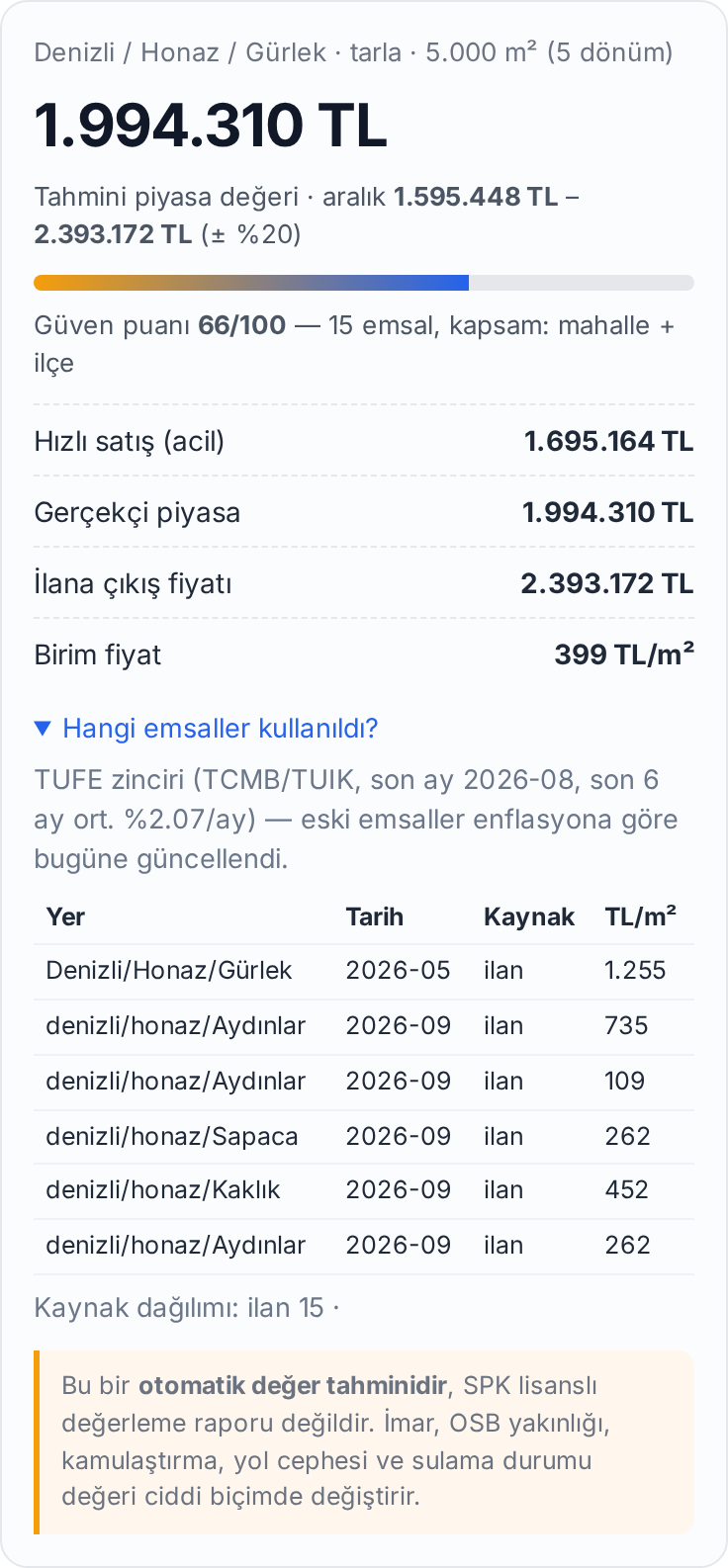
Province, district, village and m² produce an estimate with a range, a confidence score and the comparables used. Not an official SPK valuation report.
10. Comparables pool
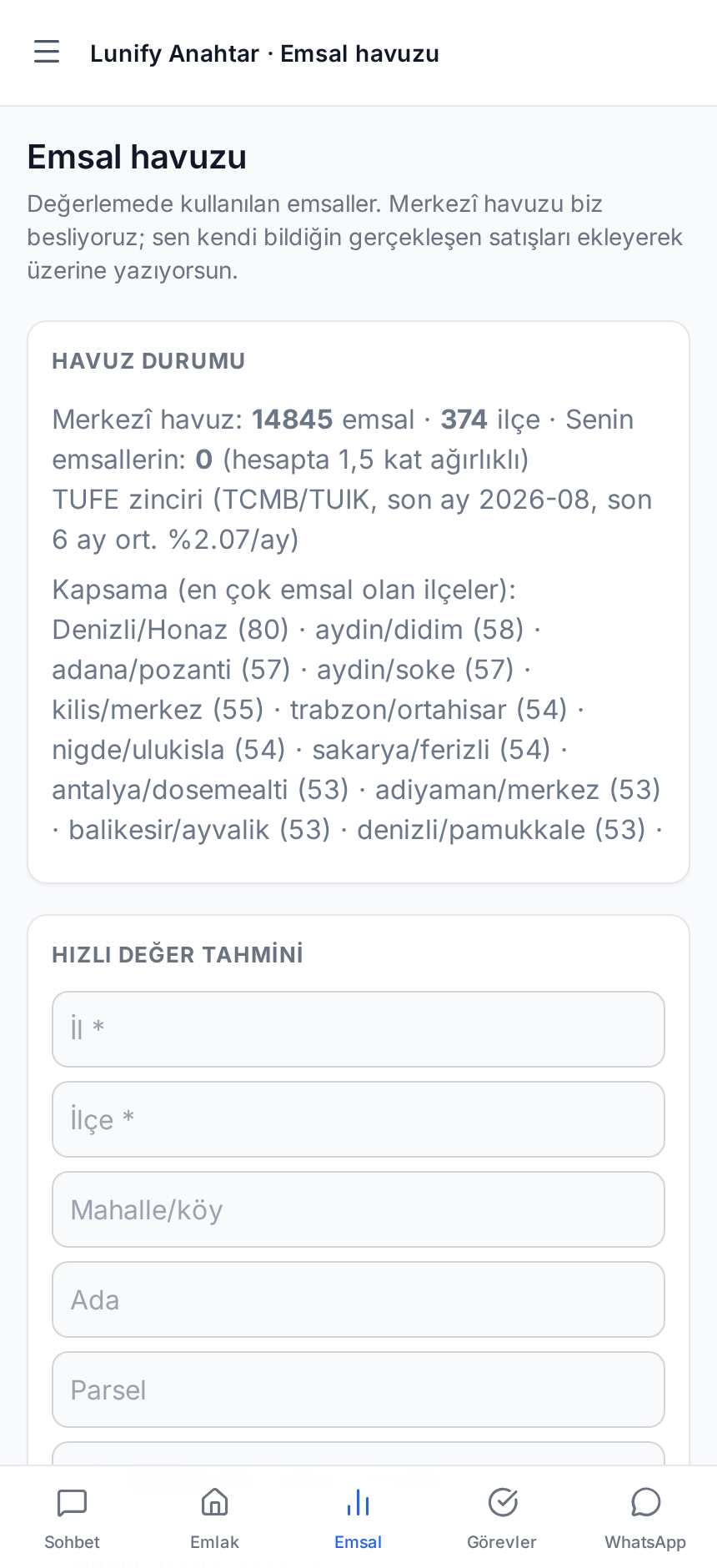
We maintain the central pool; the real sales you add count 1.5x for you. A comparable without a source is rejected.
11. The Emlak screen
Your daily desk: today’s summary, pending messages, listings, requests, appointments and CSV export.
12. Tasks and reminders
Pending approvals and reminders you created.
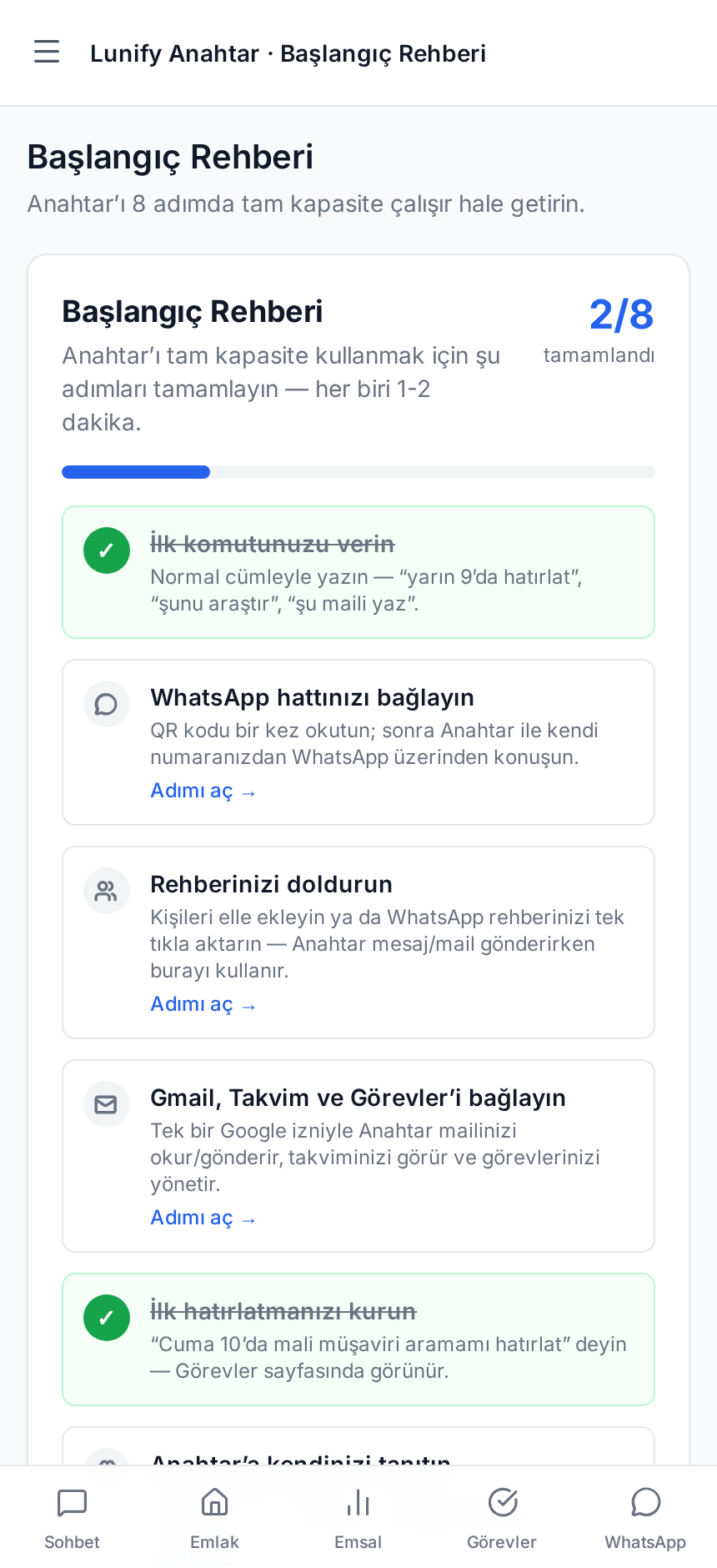
13. Getting started checklist
An eight-step checklist that turns green as you complete each step.
14. Security and privacy
Only the line owner can issue commands, nothing is sent without approval, and your data is visible to your account only.
15. Troubleshooting
Re-scan the QR if the line drops; add a known sale if a valuation finds no comparables; write to info@lunify.world if you are stuck.
Stuck? Ask Anahtar in chat, or write to info@lunify.world.